Datum:
21. August - 23. August 26 Ort: Im Emmerig, Pfyn (Schweiz)
Nach längerem Unterbruch darf AllArtia seine Tore zum Mittelalter wieder öffnen.Die Handwerker, Marktfahrer, und Heerlager zeigen den Besuchern ihr Können, teilen ihr Wissen und bieten ih...
Nach längerem Unterbruch darf AllArtia seine Tore zum Mittelalter wieder öffnen.Die Handwerker, Marktfahrer, und Heerlager zeigen den Besuchern ihr Können, teilen ihr Wissen und bieten ih...
Datum:
28. August - 30. August 26 Ort: Uster (Schweiz)
Ein offenes Genre-Festival für Gewandete, LARPerinnen und LARPer: Von Mittelalter bis Steampunk, Piraten, Endzeit und Fantasy treffen sich Spielwelten in Uster. Kein Kampf-Con, aber 100 % c...
Ein offenes Genre-Festival für Gewandete, LARPerinnen und LARPer: Von Mittelalter bis Steampunk, Piraten, Endzeit und Fantasy treffen sich Spielwelten in Uster. Kein Kampf-Con, aber 100 % c...
Das DSA5-Soloabenteuer Beim vollen Madamal, bei dem es um Elfen geht, ist im html-Format spielbar. Autor Thore Brede bietet es im Scriptorium zum selbst festlegbaren Preis an.
Wie jeden Samstag erschien ein weiterer Teil der Serie Serenissima von Ramona von Brasch und Jelena Kurbegovic, dieses Mal Folge 46.
Quelle: Scriptorium (Soloabenteuer, Serenissima 46)
Das DSA5-Soloabenteuer Beim vollen Madamal, bei dem es um Elfen geht, ist im html-Format spielbar. Autor Thore Brede bietet es im Scriptorium zum selbst festlegbaren Preis an.
Wie jeden Samstag erschien ein weiterer Teil der Serie Serenissima von Ramona von Brasch und Jelena Kurbegovic, dieses Mal Folge 46.
Die Ogor Mawtribes vertrauen weder auf List noch auf Disziplin, sondern allein auf gewaltige Muskelkraft und grenzenlosen Hunger. Jede Einheit erfüllt ihren Platz in der gefräßigen Kriegsmaschinerie des Großen Schlunds. Zeit, die Einheiten genauer zu betrachten und ihre Stärken kennenzulernen.
Dieser Beitrag wurde von Christian Kallweit geschrieben
Die Ogor Mawtribes vertrauen weder auf List noch auf Disziplin, sondern allein auf gewaltige Muskelkraft und grenzenlosen Hunger. Jede Einheit erfüllt ihren Platz in der gefräßigen Kriegsmaschinerie des Großen Schlunds. Zeit, die Einheiten genauer zu betrachten und ihre Stärken kennenzulernen.
Seit zwölf Jahren mache ich das. Gegen RPG-a-Day anschreiben. Wider RPG-a-Day. Wieder und Wieder. Jeden Tag, jeden August seit 2015. Meistens alleine, manchmal gemeinsam mit Anderen hier auf d6ideas oder auch über verschiedene Blogs hinweg.
2015: ArtifactaDay
2016: Loot-a-Day
2017: Rival-a-Day
2018: Ad-Blog
2019: RPG+Ally+a+Day
2020: Nicht einen Schritt zurück
2021: Veteran-a-Day
2022: Die tausend Titel des Katzenkaisers
2023: Sommerverdichtung
2024: Campaignconcept-a-Day
2025: A-Piece-of-Histo
Seit zwölf Jahren mache ich das. Gegen RPG-a-Day anschreiben. Wider RPG-a-Day. Wieder und Wieder. Jeden Tag, jeden August seit 2015. Meistens alleine, manchmal gemeinsam mit Anderen hier auf d6ideas oder auch über verschiedene Blogs hinweg.
Aber hier? Seit zwölf Jahren diese Drecksarbeit lässt nur eine Möglichkeit zu:
Das Dreckige Dutzend.
Interpretiert via dem Dreckigen Dutzend persistenter organischer Schadstoffe wie DDT und Dioxin (wobei das Dreckige Dutzend der biologischen Waffen eine frühere Überlegung war und vielleicht teilweise noch mitschwingt).
Einhundertvierundvierzig Giftstoffe und Umweltgifte (in weitestem, freien Sinne). Je zwölf für zwölf Systeme. Einunddreißig Tage. Zwölf Jahre wider RPG-a-Day.
Eine der Zuschreibungen, die sich für SLA Industries machen lassen ist Drugpunk. Die offenkundig Lücke unter den Schadstoffen, die es daher zu schließen gilt, sind also Medikamentenreste.
Splinters – ein üblicher Spitzname für re-aktivierbare Shatter-Metaboliten, die Stoffe werden ausgeschieden und können, wenn sie wieder aufgenommen werden, erneut zu einer aktiver Form weiterverstoffwechselt werden, so dass die Auswirkungen der mutagenen Kampfdroge auf eine Umgebung, in die sie einmal in ausreichender Grundmenge eingeführt wurde, sich kaskadierend weiter fortsetzen
Wie ihr ja sicher schon mitbekommen habt, bin ich bekennender Katholik. Daher, und weil ich Fan der ganzen GazerPress-Sachen bin, die ja im Dreißigjährigem Krieg spielen (als Basis wird nicht Sword & Wizardry genutzt, dieses Jahr soll aber ein eigenes Regelwerk rauskommen), liegt natürlich die Frage nahe, welche Heiligen von gläubigen Charakteren angerufen werden könnten, wenn mal wieder so gar keine Idee da ist, wie das Rätsel um den Mord am Baron wohl zu lösen sei.
Erzengel Michael
Wie ihr ja sicher schon mitbekommen habt, bin ich bekennender Katholik. Daher, und weil ich Fan der ganzen GazerPress-Sachen bin, die ja im Dreißigjährigem Krieg spielen (als Basis wird nicht Sword & Wizardry genutzt, dieses Jahr soll aber ein eigenes Regelwerk rauskommen), liegt natürlich die Frage nahe, welche Heiligen von gläubigen Charakteren angerufen werden könnten, wenn mal wieder so gar keine Idee da ist, wie das Rätsel um den Mord am Baron wohl zu lösen sei.
Erzengel Michael (Festtag ist der 29. September)
Der Engel mit dem Flammenschwert. Der Engel, der Luzifer persönlich aus dem Himmel geworfen hat. Der Engel, der vor dem Garten Eden wache hält. Der Schutzpatron Deutschlands (von dem wir auch die Karikatur des deutschen Michels mit Schlafmütze und etwas drögem Blick haben). Der Engel ist Schutzpatron aller Ordnungshüter und Polizisten. Wie wichtig der Erzengel früher war, lässt sich an der Schieren Anzahl der Kirchen abschätzen, die seinen Namen tragen. Laut Wikipedia sind das etwa 300, wobei die wirkliche Anzahl noch deutlich höher liegen müsste.
In einer Krimi-Fantasy-Kampagne im 30-jährigem Krieg könnte ich mir den gut als Patron der Stadtgarde vorstellen, ich könnte mir auch vorstellen, dass der gegen Dämonen gerufen werden kann (oder zumindest einen Himmlischen Streiter vorbeischickt). Ideal also als Patron für Kleriker und Paladine.
Judas Thadäus (Festtag ist der 28. Oktober)
Judas war der andere Judas in der Kommune um Jesus und dessen Cousin. Seine Brüder waren der andere Simon im Team Junger, Simon der Zelot und Jakobus (wobei der in der orthodoxen Tradition ein echter Bruder Jesu war). Judas war vor allem als Missionar unterwegs, gründete die Armenische Kirche und Bekehrte den König von Babylon. Eifersüchtige heidnische Priester sollen ihm aufgelauert und erschlagen haben. Seine Gebeine liegen im Petersdom., er wird als Heiliger in besonders ausweglosen Situationen angerufen. Interessant ist, dass Judas Thadäus der Schutzheilige der Polizei von Chicago und des brasilianischen Fußballclubs Flamengo Rio de Janeiro ist.
Warum wäre der Heilige Judas Thadäus für eine Krimi-Fantasy-Kampagne im Dreißigjährigem Krieg geeignet? Weil er der Helfer in ausweglosen Situationen ist. Als fälschlich Beschuldigter in einem Mordprozess, dessen Galgen schon errichtet wird. Als verzweifelt nach dem Indiz Suchender, der die Kameradin vom Schafott holt. Da könnte ich ihn mir gut vorstellen.
Besser als Michael oder Judas Thadäus aber passt, so glaube ich, Antonius von Padua, mein lieber Schlamperltoni. Schlamperltoni wird er im Bayrischen und in Österreich genannt, weil er der Schutzheilige der verlorenen Dinge und derjenigen ist, die danach suchen (Schlamperl von verschlampen, also etwas verlieren. Schlampermapperl ist z. B. das bayrische Pendent zum Federmäppchen, weil es darin oft sehr wüst aussieht und gern mal ein Stift oder Radiergummi darin verloren geht. Und ja, auch die Schlampe ist mit dem Wort verwandt, hat sie doch, nach den Moralvorstellungen gottseidank vergangener Zeiten, ihre Ehre verloren)
Antonius von Padua (Gedenktag ist der 13. Juni)
Toni wurde als Fernandus um 1195 rum in Lissabon als Spross einer Adelsfamilie (nach Überlieferungen die Buglion) geboren und ging mit 15 zu den Augustinern ins Kloster. Antonius studierte unter anderem in Lissabon und war geweihter Priester (was ja nicht zwingend jeder Mönch in einem Kloster ist). Mit 25 trat er dann den noch blutjungen Franziskanerorden ein. Toni wollte Märtyrer werden, zog ins muslimische Marakesch und predigte dort das Wort Gottes als Einsiedler in der Wüste.
Der Mensch denkt, Gott lenkt. Der Mensch dachte, Gott lachte.
Toni wurde krank, so krank, dass er nach Sizilien zurückgebracht wurde, Afrika hat er also gar nicht erreicht. Wieder geheilt, nahm er am Generalkapitel 1221 in Assisi teil, da war er grade mal ein Jahr Franziskaner. Dort traf er auf den Ordensgründer, den heiligen Franz von Assisi, dem die besondere Redebegabung und das Talent zum Predigen auffiel. So wurde Toni das Sprachrohr der Franziskaner in Italien und Südfrankreich.
Von ihm ist, wie von seinem Freund und Ordensoberhaupt, eine Tierpredigt überliefert, Toni hatte zu Fischen gepredigt, nachdem er es in Südfrankreich nicht geschafft hatte, die Katharer zu bekehren.
Er gilt als Schutzheiliger von 7 Städten, darunter Paderborn und Hildesheim, Der Bäcker, Bergleute, Reisenden und Sozialarbeitern und wird bei Fiebern, Pest, Schiffbruch und Kriegsnöten angerufen. Normalerweise wird er mit Jesuskind auf einem Buch in der rechten und einer Lilie in der linken Hand dargestellt, manchmal taucht auch ein Schwein auf, denn Toni ist auch Patron der Schweinehirten. Letzteres Patronat ist aber eigentlich eine Falschzuschreibung. Der Patron der Schweinehirten ist der Erimit und Vater der Mönche Antonius der Große. Aber bei den paar tausend Heiligen und der 2000-jährigen Kirchengeschichte kann so ein Patronatswechsel schon mal passieren. Besonders wichtig ist aber, dass Toni vor allem angerufen wird, Verlorenes wiederzufinden.
Toni wäre der ideale Patron für Privatdetektive, Schnüffler und Spurensucher, die nicht loslassen und solange nach Beweisen suchen, bis sie diese auch dann endlich finden.
Lasst uns doch Toni als Patron für Sword&Wizardry umsetzen:
St. Antonius von Padua
Name und Wesen des Patron : St. Antonius von Padua, auch St. Antonius von Lissabon oder, volkstümlich, Schlamperltoni
Gesinnung: Ordnung
Anrufung: Um St. Antonius anzurufen, muss man am 13. Juni in einem Zimmer, einem Haus oder einen sonstigen, unordentlichem Raum nach etwas suchen, das man selbst oder eine andere Person dort unabsichtlich verloren hat. Antonius erkennt, ob der Gegenstand absichtlich versteckt wurde — in diesem Fall erscheint er nicht. Um den Gegenstand zu finden ist nur 1 Antonius- Litanei lang Zeit (etwa 10-15 Minuten). Wird der Gegenstand nicht gefunden, erscheint zwar Antonius, zeigt auf den zu findenden Gegenstand, wird aber keinen Pakt eingehen. Frühestens nächstes Jahr kann der Pakt erneut geschlossen werden.
Manifestation: St. Antonius wird als Lichtgestalt im Franziskanerhabit erscheinen, die nur dem Anrufenden sichtbar ist. Er wird dabei eine Lilie halten. In 15% der Fälle ist das Grunzen einer Sau zu hören. Er spricht zu dem Anrufenden.
Bedingungen des Pakts: St. Antonius verlangt von jenen, die einen Pakt mit ihm eingehen wollen, ein Mindestmaß an Intelligenz und rhetorischen Fähigkeiten (INT 14). Zudem muss der Spielendencharakter der Ordnung zugetan oder neutral sein.
Gewährter Bonus:
Boni für Barden und Druiden
Stufe
Bonus
I
Entdecker verlorener Dinge I: Der Charakter erhält einen Bonus von 5 % auf das Finden verlorener oder verlegter Gegenstände. Der Bonus gilt nicht für Fallen, Geheimtüren usw.
II
Trüffelschwein: Wie aus dem Nichts erscheint, wenn der Heilige Antonius angerufen wird, 1x am Tag ein Hausschwein und beginnt für 1W20 Runden Lang mit der Suche. Am Ende der Suche findet das Schwein entweder heilende Pilze (+1W6 HP) oder Trüffel im Wert von 50 Goldmünzen. Danach löst sich das Schwein in Luft auf. Wer das Schwein tötet oder isst, verliert sofort 1W20% Gunst. Das Schwein kann frühestens nach 1W6 Tagen erneut herbeigerufen werden.
III
Entdecker verlorener Dinge II: Der Charakter erhält einen Bonus von 15 % auf das Finden verlorener oder verlegter Gegenstände. Der Bonus gilt auch für das Finden von Fallen, Geheimtüren usw.
Boni für Kleriker
Stufe
Bonus
I
Überzeugende Predigt: Alle Proben, die mit dem Überzeugen von Personen zu tun haben, sind um 10% erleichtert.
II
Entdecker verlorener Dinge: Der Charakter erhält einen Bonus von 5 % auf das Finden verlorener oder verlegter Gegenstände. Der Bonus gilt nicht für Fallen, Geheimtüren usw.
III
Meisterhafte Predigt: Alle zuhörenden Charaktere oder Monster (auch Verbündete) müssen einen Rettungswurf gegen Verwandlung bestehen. Schaffen sie diesen Rettungswurf nicht, verändert sich ihre Gesinnung (Neutral wird Ordnung, Chaos wird Neutral). Alle, die schon die Gesinnung Ordnung besitzen, erhalten einen Bonus von 10% auf die nächste Aktion und unterstützen den Spielendencharakter (z.B. im Kampf) für 2 Stunden. Alle, die nach dem misslungenen Rettungswurf Neutral oder Ordnung als Gesinnung besitzen, beenden Feindseligkeiten gegen den Spielendencharakter. Die Gesinnungsänderung gilt für 1W6 Tage, danach kann sich der Charakter oder das Monster entscheiden, ob sie die neue Gesinnung beibehalten wollen.
Götter der Ordnung und neutrale Götter haben meist nichts dagegen, wenn man einen Pakt mit St. Antonius eingeht, nehmen es aber übel, wenn man diesen Pakt bricht (Folgen nach Entscheid der Spielleitung)
Gunst des Patron erlangen: – Um St. Antonius Gunst zu erlangen, muss ein Kultist aktiv den Glauben der Bevölkerung mehren (etwa durch Armenspeisung, Kirchenrenovierungen, Einsiedelei), und, wann immer er um Hilfe bei einer Suche gebeten wird, daran teilnehmen. Als besonders gefällig gilt auch die Suche nach Schiffbrüchigen und Pilzen (welche an Arme weitergegeben werden).
Aufstieg… die Spielfigur kann ihren Patron einmal am Tag anrufen, um ihm seine Ehrerbietung zu machen. Die Spielleitung rollt W100% und vergleicht das Ergebnis mit der aktuellen Gunst der Spielfigur. Ist der gerollte Wert gleich oder drunter, so steigt die Gunst um eine Stufe und die Spielfigur erhält den mächtigeren Bonus. Anschließend wird die Gunst auf 0% zurückgesetzt.
…oderBestrafung. Misslingt die W100%- Probe, so verärgert die Spielfigur den Patron und dieser bestraft den Sterblichen für seine Anmaßung.
2W6
Konsequenzen
2
Der Charakter verliert einen wichtigen Gegenstand im Wert von 2W20 Goldmünzen oder die entsprechende Menge an Münzen. Hat der Charakter nicht genügen Münzen oder einen entsprechend wertvollen Gegenstand, verliert er EP (aufgerundet) entsprechend dem Fehlenden Wert. Dabei gilt 1 Goldmünze = 1 EP. Der Pakt wird gelöst. Dadurch entfallen alle Paktgeschenke. Mit St. Antonius kann kein neuer Pakt geschlossen werden.
3-6
Die Person verliert für 1W3 Tage die Fähigkeit, sinnvolle Sätze zu sprechen. Alle Proben zum Auffinden von Gegenständen (auch Fallen) sind für 1W6 Tage um 1W6*10% erschwert. Die Gunst fällt um 2W10%.
7-9
In der nächsten Mahlzeit, egal von wem sie zubereitet wurde, sind ungenießbare und leicht toxische Pilze. Die Person verliert 1W4 Punkte der Lebensenergie und 2W10% Gunst
10-11
St Antonius verlangt eine Großtat zu Ehren Gottes innerhalb der nächsten 1W3 Tage, sonst siehe (2). Die Großtat kann das Vernichten eines heidnischen Heiligtums einer neutralen oder chaotischen Gottheit sein, den Beginn einer Pilgerfahrt oder das Wiederauffinden einer verlorengegangenen Reliquie. Die Person verliert 1W20% Gunst.
12
Der Charakter verliert einen wichtigen magischen Gegenstand (Zauberstab, Waffe, Ring oder Trank) oder, wenn er keine magischen Gegenstände hat, 4W100 Goldmünzen. Hat der Charakter nicht genügen Münzen oder einen entsprechenden magischen Gegenstand, verliert er EP (aufgerundet) entsprechend dem Fehlenden Wert. Dabei gilt 1 Goldmünze = 1 EP. Der Pakt wird gelöst. Dadurch entfallen alle Paktgeschenke. Mit St. Antonius kann kein neuer Pakt geschlossen werden.
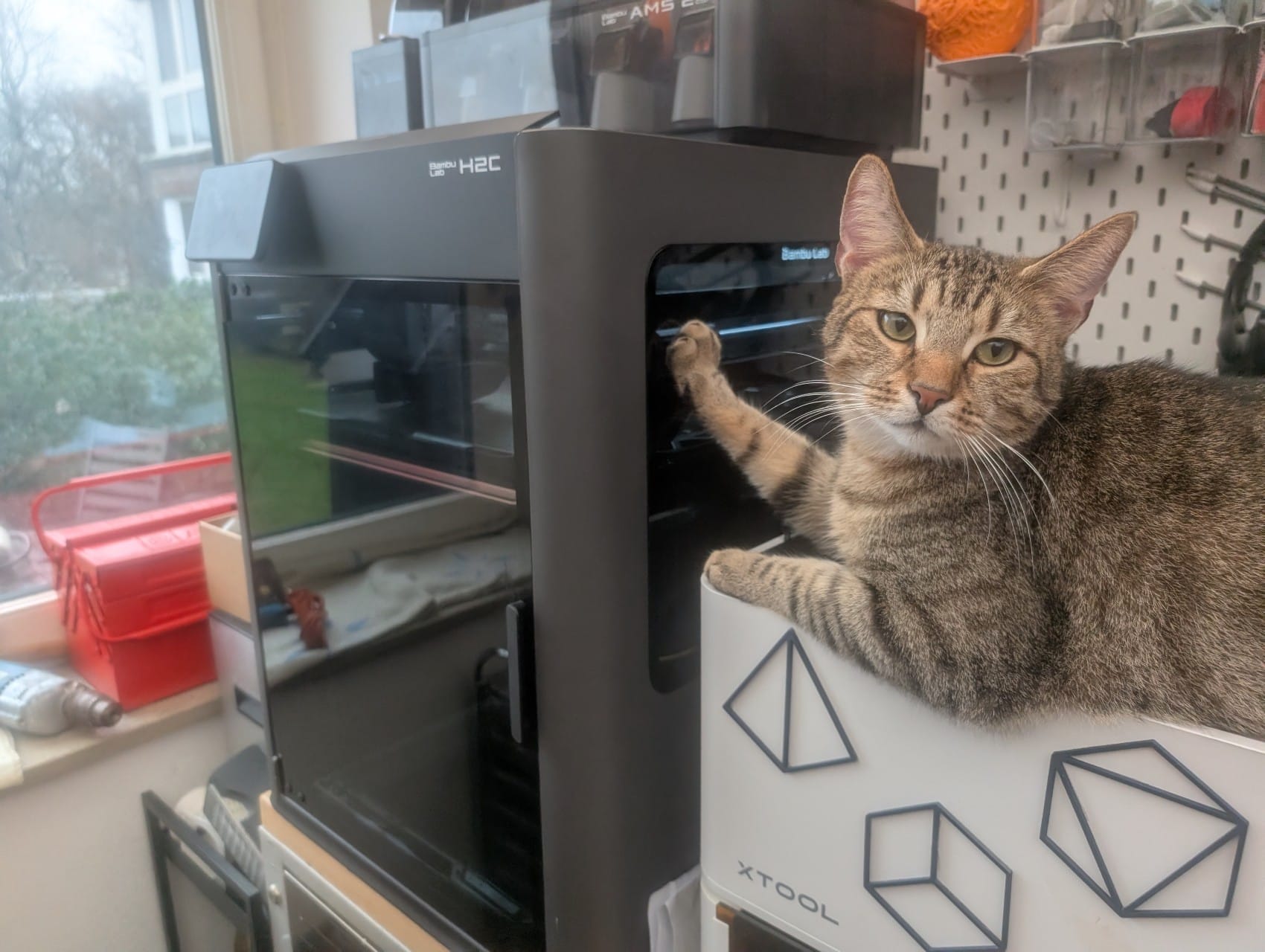
About 10 months ago I splurged and ordered the Bambulab H2C 3D printer, and for 9 months it's steadily chugging along here. It's not printing non-stop, but it feels pretty close to that sometimes.I've printed mostly PLA, but also TPU, ASA, PETG, PVA and Bambu's "Support for PLA/PETG"And apart from one issue where a sensor was misbehaving and needed replacement, the machine is just .... working. It is not foolproof, nor has every print been a success, but the vast majority of them. The machine sp
About 10 months ago I splurged and ordered the Bambulab H2C 3D printer, and for 9 months it's steadily chugging along here. It's not printing non-stop, but it feels pretty close to that sometimes.
I've printed mostly PLA, but also TPU, ASA, PETG, PVA and Bambu's "Support for PLA/PETG"
And apart from one issue where a sensor was misbehaving and needed replacement, the machine is just ..
.. working. It is not foolproof, nor has every print been a success, but the vast majority of them. The machine spat out miniatures, terrain pieces, cosplay stuff, plastic toys for my nieces and nephews, functional and decorative prints for the household, cat toys, foam dart blasters, props for games, and so on.
But why did I upgrade from the X1C that I had until then?
FOMO. yeah, sometimes that gets me too.
The tool change functionality. Since I have that, I actually do multicolour prints, because they are a lot faster this way, but mostly because there is so much less plastic waste this way.
The bigger build plate. It's "just" about 8cm more for each side, but those do make a notable difference in what I can print, or how many parts I can put into one print job.
I do acknowledge that Bambu is not a particularly FLOSS-friendly company, and that its products are decidedly less open than a home-built Voron printer. But...
...they do simply work. Again, they are not foolproof, this is after all a machine with high-speed moving parts that heat up to 300° and move molten plastic around based on user-generated software instructions. Of course something is bound to go wrong occasionally.
And despite all of this, most of the time whenever something goes wrong, the machine fails gracefully. It stops before things get worse, it asks the operator to check, it spits out messages that include a link to a friendly wiki with further information.
This has gotten to the point where the machine is extra busy now, because the girlfriend has spent one afternoon learning the basics from me and is now competing with me for machine time.
So, I am not saying that this is the perfect 3D printer. But it is gosh darn good and near perfect for how I use this. I can see the upside of a toolchanger that doesn't need to retract and reinsert filament all the time. But I do think that the advantage of being able to ad hoc combine different nozzle sizes with different filaments just in software outweighs that completely.
Im The Dark Eye Blog geht es weiter mit dem Adelshaus Greifenklaue. Neuer Zugang ist die Frau des Junkers Herlind Avesiane von Greifenklaue.
Quelle: The Dark Eye Blog
Im Infinity-Universum herrschen keine offenen Kriege. Es geht um verdeckte Operationen und lokale Schlagabtausche. In der zivilen Welt nehmen die Dinge also ihren gewohnten Lauf und es bleibt Zeit für Zerstreuung, wie zum Beispiel den blutigen Sport Aristeia. Mit Infinity Hexadome Legends erscheint nun eine überarbeitete Fassung der Brettspiel-Auskopplung.
Dieser Beitrag wurde von Dennis Rexin geschrieben
Im Infinity-Universum herrschen keine offenen Kriege. Es geht um verdeckte Operationen und lokale Schlagabtausche. In der zivilen Welt nehmen die Dinge also ihren gewohnten Lauf und es bleibt Zeit für Zerstreuung, wie zum Beispiel den blutigen Sport Aristeia. Mit Infinity Hexadome Legends erscheint nun eine überarbeitete Fassung der Brettspiel-Auskopplung.
Es gibt ein neues Interview bei Nandurion. Im Gespräch mit den Einhörnern sind Valentin und Thomas vom Projekt Avesmaps. Sie stellen darin das Projekt und die Arbeit daran vor.
Quelle: Nandurion
Es gibt ein neues Interview bei Nandurion. Im Gespräch mit den Einhörnern sind Valentin und Thomas vom Projekt Avesmaps. Sie stellen darin das Projekt und die Arbeit daran vor.
Nach einiger Zeit gibt es wieder ein neues Fanprojekt in der DSA-Szene, über das wir euch informieren wollen: Es ist der neue aventurische Routenplaner Avesmaps.
Unser Schnüffler-Einhorn Nottel hat die Hintermänner des Projekts, Thomas und Valentin, aufgespürt und wie üblich Löcher in den Bauch gefragt. Angeblich ist er in Günter-Wallraff-Manier sogar unter die Editoren von Avesmaps gegangen, um die Vorgänge dort selbst zu inspizieren. Doch bevor wir hier noch weiter uns Schwafeln geraten
»Lest
Nach einiger Zeit gibt es wieder ein neues Fanprojekt in der DSA-Szene, über das wir euch informieren wollen: Es ist der neue aventurische Routenplaner Avesmaps.
Unser Schnüffler-Einhorn Nottel hat die Hintermänner des Projekts, Thomas und Valentin, aufgespürt und wie üblich Löcher in den Bauch gefragt. Angeblich ist er in Günter-Wallraff-Manier sogar unter die Editoren von Avesmaps gegangen, um die Vorgänge dort selbst zu inspizieren. Doch bevor wir hier noch weiter uns Schwafeln geraten
Nachhaltigkeit im Tabletop beginnt bei Material, Produktion und Transport, endet aber längst nicht am Maltisch. Seit 2021 verkleinern Verlage ihre Verpackungen, Hersteller sammeln Gussrahmen und veröffentlichen erste Klimadaten. Wie belastbar sind diese Fortschritte, und wo wird das Problem bislang lediglich neu verpackt?
Dieser Beitrag wurde von Roger Lewin geschrieben
Nachhaltigkeit im Tabletop beginnt bei Material, Produktion und Transport, endet aber längst nicht am Maltisch. Seit 2021 verkleinern Verlage ihre Verpackungen, Hersteller sammeln Gussrahmen und veröffentlichen erste Klimadaten. Wie belastbar sind diese Fortschritte, und wo wird das Problem bislang lediglich neu verpackt?
Seit zwölf Jahren mache ich das. Gegen RPG-a-Day anschreiben. Wider RPG-a-Day. Wieder und Wieder. Jeden Tag, jeden August seit 2015. Meistens alleine, manchmal gemeinsam mit Anderen hier auf d6ideas oder auch über verschiedene Blogs hinweg.
2015: ArtifactaDay
2016: Loot-a-Day
2017: Rival-a-Day
2018: Ad-Blog
2019: RPG+Ally+a+Day
2020: Nicht einen Schritt zurück
2021: Veteran-a-Day
2022: Die tausend Titel des Katzenkaisers
2023: Sommerverdichtung
2024: Campaignconcept-a-Day
2025: A-Piece-of-Histo
Seit zwölf Jahren mache ich das. Gegen RPG-a-Day anschreiben. Wider RPG-a-Day. Wieder und Wieder. Jeden Tag, jeden August seit 2015. Meistens alleine, manchmal gemeinsam mit Anderen hier auf d6ideas oder auch über verschiedene Blogs hinweg.
Aber hier? Seit zwölf Jahren diese Drecksarbeit lässt nur eine Möglichkeit zu:
Das Dreckige Dutzend.
Interpretiert via dem Dreckigen Dutzend persistenter organischer Schadstoffe wie DDT und Dioxin (wobei das Dreckige Dutzend der biologischen Waffen eine frühere Überlegung war und vielleicht teilweise noch mitschwingt).
Einhundertvierundvierzig Giftstoffe und Umweltgifte (in weitestem, freien Sinne). Je zwölf für zwölf Systeme. Einunddreißig Tage. Zwölf Jahre wider RPG-a-Day.
Es wird zwar wieder esoterisch, aber Umweltzerstörung ist in gewißer Weise ein zentrales Element der Sonnenlande. Eine Welt, in der sich Dinge unkontrolliert ausbreiten, mehr werden, nicht aufhören. Und das – vielleicht – sogar seine Ursache in den Taten ihrer Bewohner findet.
Nacht – aus dem Osten wird es Nacht, stetig wird das Gebiet größer, in dem es nicht mehr Tag wird, kein Morgen mehr kommt, es dunkel bleibt
Pest – aus dem Süden kriecht das Miasma der Pest
Strand – aus dem Westen nimmt sich nicht etwa das Meer immer mehr Land, es ist der Strand der sich immer weiter ausbreitet, eine Wüste, die aus dem Meer herauswächst
Regen – aus dem Norden kommt der Regen, eine unaufhörliche Sintflutfront
Wahnsinn – aus den Tempeln brandet in Wellen der Wahnsinn
Fieber – und im Inneren der Tempel steht schweißnass die immer intensivere Glut immer mehr Priestern ins Gesicht geschrieben
Schauplatz dieses Verbrechens ist ein kleines Städtchen im Deutschland des Dreißigjährigen Krieges. Die Bewohner machen den Anschein, als wären sie unbescholtene Bürger. Doch jeder könnte aus der aktuellen Situation profitieren, auch wenn es nur einen Mörder gibt. Als Regelwerk dient Swords & Wizardry. Es gibt auch einige Easter Eggs zu finden – diese verraten die"A-bloody-or-not-so-bloody-crime-scene 2026 – Teil 12 (Der große Kanonenraub)" weiterlesen
Schauplatz dieses Verbrechens ist ein kleines Städtchen im Deutschland des Dreißigjährigen Krieges. Die Bewohner machen den Anschein, als wären sie unbescholtene Bürger. Doch jeder könnte aus der aktuellen Situation profitieren, auch wenn es nur einen Mörder gibt. Als Regelwerk dient Swords & Wizardry. Es gibt auch einige Easter Eggs zu finden – diese verraten die"A-bloody-or-not-so-bloody-crime-scene 2026 – Teil 12 (Der große Kanonenraub)" weiterlesen
Wo ich schon bei Konvertierung und Navigatoren war, kann ich auch gleich hiermit weitermachen:
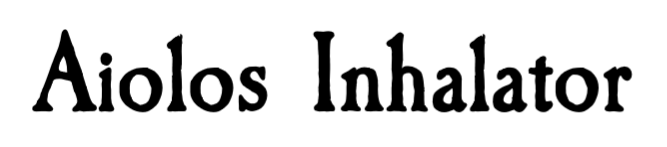
Aiolos Inhalator in Epic Roleplay:
Aiolos Inhalator
Nutzt ein Navigator einen Aiolos Inhaltor, wird ein Moralwurf abgelegt. Bei Erfolg wird wahlweise der Realzeit- oder der Warpzeit-Wurf um W10 reduziert (bis zu einem Minimum von 1). Bei Mißerfolg wird zufällig der Realzeit- oder der Warpzeit-Wurf um W10 erhöht (bis zu einem Maximum von 10).
Aiolos Inhalator
Nutzt ein Navigator einen Aiolos Inhaltor, wird ein Moralwurf abgelegt. Bei Erfolg wird wahlweise der Realzeit- oder der Warpzeit-Wurf um W10 reduziert (bis zu einem Minimum von 1). Bei Mißerfolg wird zufällig der Realzeit- oder der Warpzeit-Wurf um W10 erhöht (bis zu einem Maximum von 10).
Das Fanprojekt Avesmaps (wir berichteten) tritt nun in Social Media bei Facebook, Instagram und Mastodon auf, um über Neuigkeiten zu informieren. Auf der Webseite selbst gibt es einen entsprechend benannten Knopf, der eine Zeitlinie anzeigt, auf der Zwischenstationen des Projekts und neue Funktionen seit Beginn dokumentiert sind. Das Projekt lädt weiterhin zur Mitarbeit ein, sowohl per Meldung als Nutzer wie auch als Editor auf Discord.
Quellen: Facebook, Instagram, Mastodon, Avesmaps, Discord
Das Fanprojekt Avesmaps (wir berichteten) tritt nun in Social Media bei Facebook, Instagram und Mastodon auf, um über Neuigkeiten zu informieren. Auf der Webseite selbst gibt es einen entsprechend benannten Knopf, der eine Zeitlinie anzeigt, auf der Zwischenstationen des Projekts und neue Funktionen seit Beginn dokumentiert sind. Das Projekt lädt weiterhin zur Mitarbeit ein, sowohl per Meldung als Nutzer wie auch als Editor auf Discord.
Eine Rollenspiel-Session beginnt man am besten mit einem starken Start, sagt man. Stimmt nicht, sage ich.
Du brauchst keinen starken Start. Aber du brauchst irgendetwas, das das Eis bricht. Du brauchst einfach einen Start.
[Dies ist eine Reaction auf: "Der starke Start" - Folge 193 des Rollenspiel Prepcast.]
Eine Rollenspiel-Session beginnt man am besten mit einem starken Start, sagt man. Stimmt nicht, sage ich.
Du brauchst keinen starken Start. Aber du brauchst irgendetwas, das das Eis bricht. Du brauchst einfach einen Start.
[Dies ist eine Reaction auf: "Der starke Start" - Folge 193 des Rollenspiel Prepcast.]
Zwölf Speerspitzen, neunzig Ausgaben und jede Menge Plastik: Hachettes Spearhead-Magazin kommt nach Deutschland. Die erste Ausgabe erscheint am 19. August 2026, Abonnements können bereits jetzt abgeschlossen werden. Im Mittelpunkt steht dabei das schnelle Speerspitze-Format, für das die Leser*innen nach und nach komplette Streitmächte samt passender Regeln sammeln können.
Dieser Beitrag wurde von Geoffrey Förste geschrieben
Zwölf Speerspitzen, neunzig Ausgaben und jede Menge Plastik: Hachettes Spearhead-Magazin kommt nach Deutschland. Die erste Ausgabe erscheint am 19. August 2026, Abonnements können bereits jetzt abgeschlossen werden. Im Mittelpunkt steht dabei das schnelle Speerspitze-Format, für das die Leser*innen nach und nach komplette Streitmächte samt passender Regeln sammeln können.
Die Chaosbarbaren haben bereits letztes Jahr die alte Welt ein wenig erschüttert. Jetzt wird nachgelegt mit den Kriegern des Chaos. Eine weitere Welle von Neuerscheinungen steht an. Wir haben uns angeschaut, was Games Workshop angekündigt hat. Sind die Krieger des Chaos weiterhin eine ernstzunehmende Bedrohung auf dem Schlachtfeld?
Dieser Beitrag wurde von Nina Horbelt geschrieben
Die Chaosbarbaren haben bereits letztes Jahr die alte Welt ein wenig erschüttert. Jetzt wird nachgelegt mit den Kriegern des Chaos. Eine weitere Welle von Neuerscheinungen steht an. Wir haben uns angeschaut, was Games Workshop angekündigt hat. Sind die Krieger des Chaos weiterhin eine ernstzunehmende Bedrohung auf dem Schlachtfeld?
In zwei Wochen geht es weiter mit unserer Kampagne „Buch des Lebens“. Da die letzte Folge so lange her ist gibt es hier nochmal eine Zusammenfassung der Geschehnisse.
In zwei Wochen geht es weiter mit unserer Kampagne „Buch des Lebens“. Da die letzte Folge so lange her ist gibt es hier nochmal eine Zusammenfassung der Geschehnisse.
Seit zwölf Jahren mache ich das. Gegen RPG-a-Day anschreiben. Wider RPG-a-Day. Wieder und Wieder. Jeden Tag, jeden August seit 2015. Meistens alleine, manchmal gemeinsam mit Anderen hier auf d6ideas oder auch über verschiedene Blogs hinweg.
2015: ArtifactaDay
2016: Loot-a-Day
2017: Rival-a-Day
2018: Ad-Blog
2019: RPG+Ally+a+Day
2020: Nicht einen Schritt zurück
2021: Veteran-a-Day
2022: Die tausend Titel des Katzenkaisers
2023: Sommerverdichtung
2024: Campaignconcept-a-Day
2025: A-Piece-of-Histo
Seit zwölf Jahren mache ich das. Gegen RPG-a-Day anschreiben. Wider RPG-a-Day. Wieder und Wieder. Jeden Tag, jeden August seit 2015. Meistens alleine, manchmal gemeinsam mit Anderen hier auf d6ideas oder auch über verschiedene Blogs hinweg.
Aber hier? Seit zwölf Jahren diese Drecksarbeit lässt nur eine Möglichkeit zu:
Das Dreckige Dutzend.
Interpretiert via dem Dreckigen Dutzend persistenter organischer Schadstoffe wie DDT und Dioxin (wobei das Dreckige Dutzend der biologischen Waffen eine frühere Überlegung war und vielleicht teilweise noch mitschwingt).
Einhundertvierundvierzig Giftstoffe und Umweltgifte (in weitestem, freien Sinne). Je zwölf für zwölf Systeme. Einunddreißig Tage. Zwölf Jahre wider RPG-a-Day.
Nach der ersten sehr freien, pseudo-philosophischen Auslegung des Themas für Warhammer 40,000 ist diese zweite konventionell bis ins Mark. Außerdem präsentiert sie Spieleffekte für Epic Roleplay.
Neurotoxine – bei langfristiger Exposition wird für eine Personnage ein W6 geworfen, 1: sie erhält Mindless, 2-3: sie erhält Ignorant, 4-5: -, 6: sie erhält Frenzy
Industrieschlämme – bei langfristiger Exposition wird für eine Personnage ein W6 geworfen, 1-2: sie erhält Feeble, 3-4: -, 5-6: sie erhält Die Hard
Korrosiva – bei langfristiger Exposition wird für eine Personnage ein W6 geworfen, 1: sie erhält Blind, 2: sie erhält Slow, 3: sie erhält Lost Arm, 4-6: –
Mutagene – bei langfristiger Exposition wird für eine Personnage ein W6 geworfen, 1: ihre Karriere wechselt auf Mutant, 2-5: -, 6: sie erhält ein zufälliges Talent von der Tabelle der Mutant-Karriere
Ein Tatort für Electric Bastionland von Kreggen.
Die SC werden von Roderich zu Schmetterknall (dem Bürgermeister ihres Bezirks) engagiert, um einen Mord im Amt für fehlerhafte Erinnerungen aufzuklären.
Ein Tatort für Electric Bastionland von Kreggen.
Die SC werden von Roderich zu Schmetterknall (dem Bürgermeister ihres Bezirks) engagiert, um einen Mord im Amt für fehlerhafte Erinnerungen aufzuklären.
Jetzt sind wir schon an dem Punkt an dem ich schon zwei Monate zusammenfassen muss – eigentlich wollte ich Anfang Juli den Artikel zu Juni schreiben, aber ich habe es vor meinem Urlaub nicht mehr geschafft, und dann ist es vor lauter Dinge die im Urlaub passiert sind untergegangen und jetzt sind wir im August angekommen. Ich werde jetzt auch nicht anfangen die beiden Monate auseinander zu dröseln, sondern zusammenfassen wo wir aktuell sind. Warhammer: The Enemy Within Unsere verzweifelten Ganove
Jetzt sind wir schon an dem Punkt an dem ich schon zwei Monate zusammenfassen muss – eigentlich wollte ich Anfang Juli den Artikel zu Juni schreiben, aber ich habe es vor meinem Urlaub nicht mehr geschafft, und dann ist es vor lauter Dinge die im Urlaub passiert sind untergegangen und jetzt sind wir im August angekommen. Ich werde jetzt auch nicht anfangen die beiden Monate auseinander zu dröseln, sondern zusammenfassen wo wir aktuell sind. Warhammer: The Enemy Within Unsere verzweifelten Ganoven tapferen Helden sind jetzt endlich auf der Spur der Skaven, und werden sich jetzt auch nicht mehr davon abhalten [...]
Mit dem Poly-Pen lassen sich 1W6 (identische) Schriftrollen gleichzeitig schreiben. Die Wucherungen in der Schreibhand verursachen dabei Schaden in Höhe der Summe aller Spruchstufen.
Mit dem Poly-Pen lassen sich 1W6 (identische) Schriftrollen gleichzeitig schreiben. Die Wucherungen in der Schreibhand verursachen dabei Schaden in Höhe der Summe aller Spruchstufen.
Johannes und Daniel erzählten im Ottavio-Panel auf der RatCon 2026 letztes Wochenende unter anderem was die Zukunft für Aventuria bringt. Als Crowdfunding im Oktober bis November 2026 kommen die Mehrspielerbox Expedition ins Orkland und die Solospielerbox Auf dem Weg ohne Gnade:
Beide Boxen sind jeweils für sich spielbar
Keine Überschneidungen bei Schergen (so erinnerte sich zumindest Johannes)
Es gibt weitere einzelne Helden(sets)
Teamherausforderungen sind diesmal nicht im Crowdfunding
Statt
Johannes und Daniel erzählten im Ottavio-Panel auf der RatCon 2026 letztes Wochenende unter anderem was die Zukunft für Aventuria bringt. Als Crowdfunding im Oktober bis November 2026 kommen die Mehrspielerbox Expedition ins Orkland und die Solospielerbox Auf dem Weg ohne Gnade:
Beide Boxen sind jeweils für sich spielbar
Keine Überschneidungen bei Schergen (so erinnerte sich zumindest Johannes)
Es gibt weitere einzelne Helden(sets)
Teamherausforderungen sind diesmal nicht im Crowdfunding
Stattdessen Abenteuerszenarien für einzelne Gruppen (wobei unklar war, ob in Form der Heldensets oder separat)
Zur Expedition ins Orkland:
Örtlich beschränkter als die Box Kelche der Macht
Kartografieren des Orklands
Kartografieren ist als neuer Wildniserkundungsmodus mit drin, in dem eine „Landkarte“ über das Aufdecken von Karten erforscht wird
Währenddessen „stolpert“ man von Abenteuer zu Abenteuer
Epischer Plot, angelegt an die Orkland-Trilogie (DSA1), aber Entwickler Christian Lonsing hat es sich nicht nehmen lassen, völlig zu eskalieren und das Ganze zu einem noch viel komplexeren Gebilde aufzubauschen.
Völlig „abgefahrene“ Story
Gegner fieser denn je, z. B. ein Riesenlindwurm.
(Aktuell noch) Sehr tödlich – aber es gibt Werkzeuge, das zu verhindern, bspw. Wiederbelebungsperlen etc. Das Balancing ist noch in Arbeit.
Helden: Entdecker/Entdeckerin (stark überarbeitete Version des Festumer Entdeckers aus 1.0 – mit Relikten), Skaldin/Skalde aus Thorwal (mit Gruppen-Buffs), Schwertgeselle/Schwertgesellin (haut gut drauf), Druide/Druidin (haut auch stark drauf – aber anders), Halborkische Jägerin/Jäger (nutzt Nachteilskarten zu ihrem Vorteil), Hesindegeweihter/Hesindegeweihte (mit Fähigkeiten, ihre Talente zu verbessern)
Zu Auf dem Weg ohne Gnade:
Der Held ist Magier (Box auch nur mit magiebegabtem Helden spielbar)
Die Aufgabe: Einem noch fieseren Magier das Handwerk zu legen.
Am vergangenen Samstag fand die Keynote auf der RatCon 2026 in Langen statt. Wie üblich sprach Markus Plötz über die Vergangenheit der letzten 12 Monate, aktuelle und künftige Entwicklungen. Vieles dürfte aufmerksamen Nuntiovolo-Lesern bereits bekannt sein, weswegen wir die Neuigkeiten für DSA herausheben möchten. Das ganze Video der Keynote könnt ihr auf Youtube anschauen.
Neue ELF-Produkte
Mausritter des Schwarzen Auges, Regelband sowie Ergänzungen und Erweiterungen
Borbarads Turm oder der Fl
Am vergangenen Samstag fand die Keynote auf der RatCon 2026 in Langen statt. Wie üblich sprach Markus Plötz über die Vergangenheit der letzten 12 Monate, aktuelle und künftige Entwicklungen. Vieles dürfte aufmerksamen Nuntiovolo-Lesern bereits bekannt sein, weswegen wir die Neuigkeiten für DSA herausheben möchten. Das ganze Video der Keynote könnt ihr auf Youtube anschauen.
Neue Links, frisch aus dem Rollenspiel-Sumpf! Na gut, einer ist schon etwas älter, feiert in diesem Jahr aber ein Jubiläum.
Der Dusnak-Sumpf
2-Minute Tabletop haben einen schönen Sumpf mit vier spannenden Echsenmenschen-Clans erstellt. Die systemneutrale Beschreibung steht kostenfrei auf der Seite, aber es sind auch passende Battlemats auf der Seite zu erwerben (alles auf Englisch).
1W6 Dinge im Kanal
John Does Manor hat mal wieder eine wunderbare Zufallstabelle, die auch zu einem Ka
Neue Links, frisch aus dem Rollenspiel-Sumpf! Na gut, einer ist schon etwas älter, feiert in diesem Jahr aber ein Jubiläum.
Der Dusnak-Sumpf
2-Minute Tabletop haben einen schönen Sumpf mit vier spannenden Echsenmenschen-Clans erstellt. Die systemneutrale Beschreibung steht kostenfrei auf der Seite, aber es sind auch passende Battlemats auf der Seite zu erwerben (alles auf Englisch).
1W6 Dinge im Kanal
John Does Manor hat mal wieder eine wunderbare Zufallstabelle, die auch zu einem Kanal in Nexhafen oder einem Entwässerungsgraben im Bruxensumpf passt.
Die verlassene Hütte im Spinnensumpf
Dieses Dungeonslayers-Abenteuer führt die Gruppe in den tödlichen Spinnensumpf und feiert in diesem Jahr tatsächlich seinen 10-jährigen Geburtstag.
Bonuslink
Ich habe mein zweites D&D-Abenteuer in der Dungeon Masters Guild veröffentlicht: Der Fluch der lebenden Steine. Darin erkundet die Abenteuergruppe einen Wald, es könnte aber ebensogut in einem Sumpf spielen.
Im Jahr 1995 wagte Marvel etwas Neues: Sämtliche X-Men-Reihen wurden eingestellt und durch neue Titel in einer Parallelwelt ersetzt. Die Zeit der Apocalypse hatte begonnen und wirkt bis heute nach. Wir stellen euch den namensgebenden Schurken, den Auslöser und die berühmtesten Überlebenden der dystopischen Zeitlinie vor.
Dieser Beitrag wurde von Kai Frederic Engelmann geschrieben
Im Jahr 1995 wagte Marvel etwas Neues: Sämtliche X-Men-Reihen wurden eingestellt und durch neue Titel in einer Parallelwelt ersetzt. Die Zeit der Apocalypse hatte begonnen und wirkt bis heute nach. Wir stellen euch den namensgebenden Schurken, den Auslöser und die berühmtesten Überlebenden der dystopischen Zeitlinie vor.
Taucht ein in das Indien der 1930er Jahre und erlebt einen spannenden Kriminalfall auf einer Fähre, die den Ganges entlangfährt. Was als gemeinsame Reise eines Detektivvereins beginnt, wird innerhalb weniger Augenblicke zu einem Wettlauf gegen die Zeit: Ein Mord geschieht direkt vor den Augen der Spielerinnen und Spieler. SZENARIO VON DISTRIBUTION.
Taucht ein in das Indien der 1930er Jahre und erlebt einen spannenden Kriminalfall auf einer Fähre, die den Ganges entlangfährt. Was als gemeinsame Reise eines Detektivvereins beginnt, wird innerhalb weniger Augenblicke zu einem Wettlauf gegen die Zeit: Ein Mord geschieht direkt vor den Augen der Spielerinnen und Spieler. SZENARIO VON DISTRIBUTION.
Seit zwölf Jahren mache ich das. Gegen RPG-a-Day anschreiben. Wider RPG-a-Day. Wieder und Wieder. Jeden Tag, jeden August seit 2015. Meistens alleine, manchmal gemeinsam mit Anderen hier auf d6ideas oder auch über verschiedene Blogs hinweg.
2015: ArtifactaDay
2016: Loot-a-Day
2017: Rival-a-Day
2018: Ad-Blog
2019: RPG+Ally+a+Day
2020: Nicht einen Schritt zurück
2021: Veteran-a-Day
2022: Die tausend Titel des Katzenkaisers
2023: Sommerverdichtung
2024: Campaignconcept-a-Day
2025: A-Piece-of-Histo
Seit zwölf Jahren mache ich das. Gegen RPG-a-Day anschreiben. Wider RPG-a-Day. Wieder und Wieder. Jeden Tag, jeden August seit 2015. Meistens alleine, manchmal gemeinsam mit Anderen hier auf d6ideas oder auch über verschiedene Blogs hinweg.
Aber hier? Seit zwölf Jahren diese Drecksarbeit lässt nur eine Möglichkeit zu:
Das Dreckige Dutzend.
Interpretiert via dem Dreckigen Dutzend persistenter organischer Schadstoffe wie DDT und Dioxin (wobei das Dreckige Dutzend der biologischen Waffen eine frühere Überlegung war und vielleicht teilweise noch mitschwingt).
Einhundertvierundvierzig Giftstoffe und Umweltgifte (in weitestem, freien Sinne). Je zwölf für zwölf Systeme. Einunddreißig Tage. Zwölf Jahre wider RPG-a-Day.
Eine alte Spielwelt, die ich alle paar Jahre wieder einmal anschaue, ein paar Dinge an ihr versuchsweise ändere, und sie dann doch wieder liegen lasse. Die echte Renovierung, der große Umbau steht aus. Im Blog tauchte sie vor allem mit Bezug auf ihre Weimareske Parteienlandschaft und politische Instabilität ihrer demokratischen Sternenunion ein paarmal auf, was auch einer der Teile ist, die sich wohl nicht substantiell ändern werden. Die folgenden Umweltbelastungen hingegen, sind ein Durcheinander an Ideen, die an Elementen der Spielwelt kleben, die sich – wenn ich jemals ernst damit mache, sie noch einmal richtig anzufassen – stark verändern könnten. Giftstoffe unter Vorbehalt.
Biodyne – (in manchen Iterationen der Spielwelt auch Biodyne Systems oder Federated Biodyne) als Monopolist in der Herstellung der für die überlichtschnelle Raumfahrt faktisch unentbehrlichen Kunstlebewesen hat Biodyne mehr als genug Einfluß, dass relevante Gesetze und Normen quasi in der Rechtsabteilung des Konzerns verfasst werden – die Sperrgebiete (nationale Sicherheit) um die Produktionsstätten und Labore Biodynes sind dadurch hochgradig belastet, um nicht zu sagen verseucht, mit allem von Antiobiotika, Anabolika und anderen Medikamentenresten, zu Bergen an Nicht-Leichen (it is not a person)
Gedächtnislücken – Exposition zu hyperenergetischen Effekten, insbesondere im Rahmen überlichtschneller Reisen, kann zu Gedächtnisbeeinträchtigungen bei Menschen führen – gegebenenfalls permanenten
Computerfehler – die hyperenergetischen Effekte, die menschliche Hirne stören können, können äquivalent auch auf Computersysteme wirken und Code korrumpieren
Hyperfragmente – während sich die vorgenannten Umweltbelastungen durch Einsatz von hyperenergetischer (Gravitationsmanipulation und Hyperraum) Technik auf Informationsebene manifestieren, sind sogenannte Hyperfragmente physische Ablagerungen, häufig quasi-lebendig in Organismen wuchernd
Bergbauindustrie – hyperenergetische Technik ist auf exotische Rohstoffe angewiesen, deren Abbau – wenn auch nicht wie die Aktivitäten von Biodyne monopolistisch betrieben – eine solche strategische, zivilisatorische Bedeutung hat, das auch die Bergbauunternehmen ohne Rücksicht auf die jeweilige planetare Umwelt (oder die Gesundheit ihres Personals) agieren können, neben konventionellen Schadstoffen und Problemen, von Feinstaub bis Blausäure, können die geförderten Rohstoffe und der Abraum auch die hyperenergetischen Belastungen auslösen oder verstärken
Navigationsstrahlen – den Gravitationsstrahlern, die von Raumschiffen als „Schlüssel“ für den Hyperraum genutzt werden, werden, gegebenenfalls akkumulierende, Nebenwirkungen auf das Raumzeitkontinuum zugeschrieben
Schockgel – weit verbreitet um kinetische Energie aus Unfällen (und im militärischen Kontext aus Waffenwirkungen) zu absorbieren, gelangt verbrauchtes Schockgel regelmäßig in die Umwelt, wo nur weniger lokale Ökosysteme dazu in der lage sind, die Nanopartikel wirksam abzubauen
Gravitationsanomalien – auch ohne den wiederholten punktuellen Einsatz von Navigationsstrahlen häufen sich Anomalien in den wirkenden Schwerekräften im Umfeld der Förderung und verarbeitung exotischer Substanzen oder Produktion und Betrieb hyperenergetischer Technik
Trockene Kolonien – während die Menschheit beziehungsweise die Terranische Union Biodyne und die Bergbaukonzerne bei der Verseuchung der Umwelt gewähren lässt, sind auch die Naga nicht rücksichtsvoller, die semi-aquatischen Sophonten messen der Umwelt von Kolonialwelten ohne größere Mengen freien Wassers keinerlei Bedeutung zu und ihre „trockenen Kolonien“ gleichen daher außerhalb ihrer Kuppelstädte Deponien
Modifizierte Agrarplaneten – MAPs sind geplante Umweltvernichtungen – massierter Einsatz von GMOs auf geeigneten Welten soll lokale Ökosysteme abwürgen und so den gesamten Planeten für die Betreiber produktiv nutzbar machen
Freie Systeme – (iteriert als Föderierte Systeme und Freie Föderation) der kleinste der von der Terranischen Union abgespaltenen Staaten hat die Industrie in seinem begrenzten Einflußbereich quasi vollständig dereguliert, so dass die bereits beschriebenen Exzesse sich auf ihren Welten noch einmal potenzieren
Kristallgift – führt zur graduellen Zersetzung exotischer Materialien, seine genaue Identität ist ungeklärt, aber eine multifaktorielle Verbindung mit Bergbautechniken wird vermutet, ohne dass diese schon erfolgreich eingegrenzt wäre
Weiter mir den Konvertierungsversuchen älteren Materials, diesmal die erste Schiffskomponente, die ich auf dem Blog hatte:
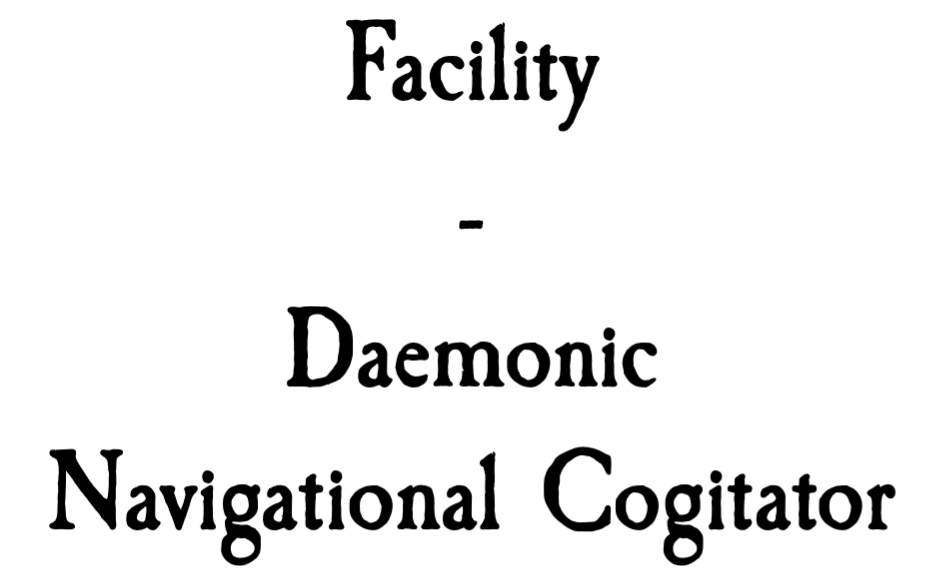
Dämonen-Navigationscogitator in Epic Roleplay:
Dämonen-Navigationscogitator (kompakt)
Die maximale Distanz für Warpsprünge ohne Navigator beträgt bei Nutzung des Dämonen-Navigationscogitators bis zu 50 Lichtjahre, aber alle Würfe für Warpraumereignisse werden auf der Major Distortions-Tabelle absolviert.
Wird der Dämonen-Navigationscogitator jemals beschädigt, so manifestie
Dämonen-Navigationscogitator (kompakt)
Die maximale Distanz für Warpsprünge ohne Navigator beträgt bei Nutzung des Dämonen-Navigationscogitators bis zu 50 Lichtjahre, aber alle Würfe für Warpraumereignisse werden auf der Major Distortions-Tabelle absolviert.
Wird der Dämonen-Navigationscogitator jemals beschädigt, so manifestiert sich der vormals gefangene Dämon im Schiff.
Am vergangenen Wochenende fand die RatCon 2026 statt. Inzwischen gibt es bereits die ersten Beiträge zur Veranstaltung:
die neue SchelmSchau von Kai Frerich zur RatCon 2026
der Rollenspiel-Blog von Florian Krockert zur RatCon 2026
der Blog Epic Adventures zur RatCon 2026
Quellen: YouTube (SchelmSchau), Rollenspiel-Blog, Epic Adventures
Die Kriegerpoeten haben den nächsten Spielbericht ihrer Kampagne zur Blutigen See eingestellt. Unter dem Titel Praios‘ Licht und Rondras Donner geht es weiter in Festum.
Quelle: Kriegerpoeten
Die Kriegerpoeten haben den nächsten Spielbericht ihrer Kampagne zur Blutigen See eingestellt. Unter dem Titel Praios‘ Licht und Rondras Donner geht es weiter in Festum.
Ich habe eine tiefe Liebe zu dem Leverage RPG. Zum einen weil sich das "Heist" Genre schon seit "Der Clou" einen Platz in meinem Herzen ergaunert hat.Zum anderen weil das Regelsystem der gleichnamigen TV-Serie auf den Leib geschrieben wurde, und dabei eben nicht nur auf Standbilder und Namen zugegriffen hat, sondern vor allem die Tropes verstanden hat. Die Regeln bauen also auf genau diesen Klischees und Versatzstücken auf und sorgen dafür, dass man sie gewinnbringend einbaut.Das Würfelsystem is
Ich habe eine tiefe Liebe zu dem Leverage RPG. Zum einen weil sich das "Heist" Genre schon seit "Der Clou" einen Platz in meinem Herzen ergaunert hat.
Zum anderen weil das Regelsystem der gleichnamigen TV-Serie auf den Leib geschrieben wurde, und dabei eben nicht nur auf Standbilder und Namen zugegriffen hat, sondern vor allem die Tropes verstanden hat. Die Regeln bauen also auf genau diesen Klischees und Versatzstücken auf und sorgen dafür, dass man sie gewinnbringend einbaut.
Das Würfelsystem ist eher grobschlächtig und führt Rolle (z.B. Dieb oder Hackerin), Attribut (z.B. Intelligenz oder Gewandheit) und dann eben auch noch Eigenschaften (z.B. "trockener Alkoholiker", "liebt Lüftungsschächte") zusammen und hat zusätzlich einen "Einsatz erhöhen"-Mechanismus.
Dazu kommen Mechaniken für Rückblenden, auf die Archetypen zugeschnittene Sonderfertigkeiten und die ständige Regieanweisung von "lass alle cool aussehen".
Mit diesem System habe ich so einige sehr, sehr geile Spielrunden geleitet, und hoffte letzten Mittwoch auf ebenso eine.
Dabei waren fünf Leute, von denen nur eine Person das System schonmal bespielt hatte. Ich teilte die Session in zwei Teile: Einen kurzen Einführungsjob um Charaktere zu erstellen und die Regeln kennenzulernen, und dann das Main Event nach der Essenspause.
Der Einführungsjob lief phä-no-me-nal. Alle hatten Spotlight, Rückblenden und Fähigkeiten wurden gut verstanden, und die Gruppe legte sich auf Schmalspurganovenniveau mit den Elektro-Tretrollerfahrenden Harburg Hools an, die gerade Nachbarin Elfriede mit dem Enkeltrick um die Ersparnisse gebracht hat.
So beflügelt ging es dann an den Hauptjob: Der vom freundlichen Punker Jörg betriebene Abenteuerspielplatz wurde von einem Immobilienhai bedroht.
Und ab da ging es dann abwärts. Das Mastermind versuchte den Plot über das Vereinsrecht zu lösen, der Schläger bekam nix zu tun, der Grifter bekam keine Ziele, die Diebin und der Hacker hatten kleine Aufgaben, aber agierten auch eher wahllos.
Im Nachhinein war uns allen klar, dass die Person hinter dem Mastermind zwar Spiel und Genre kannte, super eloquent und dominant war, aber nicht über den Tellerrand der jeweiligen Szene schauen konnte und sich daher komplett und dauernd verrannte.
Zwischendurch winkte ich mit diversen Zaunpfählen, aber immer wenn ich die Leute so halbwegs in die richtige Richtung geschubst hatte, übernahm das Mastermind wieder: "Und dann schenke ich ihm Chruschtchows Schuh!"
Geile Idee, großartiges Bild, aber was das jetzt beim Bösewicht auslösen sollte, wusste das Mastermind dann nicht mehr so richtig zu sagen.
Dass ich auch nicht einfach Schienen verlegen wollte hat natürlich auch nicht geholfen. Natürlich muss man als Fixer bei Leverage immer wieder mal hart Szenen schneiden, aber zumindest der grobe Plan sollte schon von der Gruppe kommen...
Wir haben dann mit Hängen und Würgen den Plot irgendwie zuende bekommen, aber nicht ohne den Schläger verloren zu haben - die Person war sich permanent unsicher, ob sie nicht irgendwas falsch mache, ob sie vielleicht lauter sein solle, oder ob das nicht vielleicht doch das falsche Spiel für sie sei.
Meine Lektionen für die Zukunft:
Die Mastermind Rolle nicht einfach nach Gutdünken vergeben, sondern die Person ein wenig auf "Du bist für den Plan zuständig, und der soll die anderen beinhalten" einschwören
Klarere Ansagen machen, wenn ein Ansatz nicht zum Genre oder System passt. Und das dann auch so formulieren. Ich hatte versucht, zu erklären, warum der Vereinsrecht-Vorstoß juristisch nicht klappen kann, anstelle zu sagen "nee, das passt nicht zum Genre, denk Dir was passenderes aus - wie wäre es mit..."
Abgesehen davon hoffe ich, dass bei den Leuten die erste Hälfte deutlich mehr in Erinnerung bleibt, denn die Sache mit der Magic-Karte, dem Pfandleiher und den Elektrotretrollern war einfach super!
Die Late-Pledge-Phase zum Maraskan-Crowdfunding Insel der Zwillingsgötter bei Gamefound ist angebrochen. Wer also noch teilnehmen möchte, kann dies nun tun. Dazu können auch die schon bisherigen Unterstützer die zweibändige Ausgabe der aventurischen Geschichten von Karl-Heinz Witzko mit den Titeln Preiset die Schönheit und Im Zeichen der Zwillinge für jeweils 50 € erwerben. Je gekauftem Band spendet Ulisses dabei 10 € an Spielend dabei! e.V. Der Verein entstand mit dem übrigen Geld aus der Samml
Die Late-Pledge-Phase zum Maraskan-Crowdfunding Insel der Zwillingsgötterbei Gamefound ist angebrochen. Wer also noch teilnehmen möchte, kann dies nun tun. Dazu können auch die schon bisherigen Unterstützer die zweibändige Ausgabe der aventurischen Geschichten von Karl-Heinz Witzko mit den Titeln Preiset die Schönheit und Im Zeichen der Zwillinge für jeweils 50 € erwerben. Je gekauftem Band spendet Ulisses dabei 10 € an Spielend dabei! e.V. Der Verein entstand mit dem übrigen Geld aus der Sammlung für Karl-Heinz Witzkos Bestattung und unterstützt sozial schwache Autor:innen und Grafiker:innen.
Nach ihrer Flucht aus der Feenwelt wollen die Gefährten sich um die Nekromantin kümmern. Sie glauben, dass diese für die Geister und Banshees hinter dem Feentor verantwortlich ist. Zum Kampagnen-Tagebuch…
Nach ihrer Flucht aus der Feenwelt wollen die Gefährten sich um die Nekromantin kümmern. Sie glauben, dass diese für die Geister und Banshees hinter dem Feentor verantwortlich ist. Zum Kampagnen-Tagebuch…
Beim DSA-Panel auf der RatCon 2026 am letzten Sonntag erzählten Johannes, Zoe und Niko von der DSA-Redaktion welche Produkte gerade fertig sind und ausgeliefert werden sowie welche noch in Arbeit sind:
Aventurisches Lexikon, Auslieferung evtl. noch 2026
Heldenwerk Archiv X, sechs Heldenwerke plus Schwarzer Mond und Bote des Verderbens
Crowdfunding Maraskan — Insel der Zwillingsgötter
Preiset die Schönheit und Im Zeichen der Zwillinge, Maraskan-Romane von Karl-Heinz Witzko
Göttin der Chimären —
Beim DSA-Panel auf der RatCon 2026 am letzten Sonntag erzählten Johannes, Zoe und Niko von der DSA-Redaktion welche Produkte gerade fertig sind und ausgeliefert werden sowie welche noch in Arbeit sind:
2112 ist Hamburg überflutet, Robos und Neuroimplantate sind alltäglich und Gaming füllt Stadien. Überraschend kann Go [Stuntboi] Kazumi für zwei Gaming-Stars arbeiten, die Chance ihres Lebens – bis zu einem Bombenanschlag. Und was ist mit ELL, an die Go ständig denken muss?
Dieser Beitrag wurde von Marie Mönkemeyer geschrieben
2112 ist Hamburg überflutet, Robos und Neuroimplantate sind alltäglich und Gaming füllt Stadien. Überraschend kann Go [Stuntboi] Kazumi für zwei Gaming-Stars arbeiten, die Chance ihres Lebens – bis zu einem Bombenanschlag. Und was ist mit ELL, an die Go ständig denken muss?
2112 ist Hamburg überflutet, Robos und Neuroimplantate sind alltäglich und Gaming füllt Stadien. Überraschend kann Go [Stuntboi] Kazumi für zwei Gaming-Stars arbeiten, die Chance ihres Lebens – bis zu einem Bombenanschlag. Und was ist mit ELL, an die Go ständig denken muss?
Dieser Beitrag wurde von Marie Mönkemeyer geschrieben
2112 ist Hamburg überflutet, Robos und Neuroimplantate sind alltäglich und Gaming füllt Stadien. Überraschend kann Go [Stuntboi] Kazumi für zwei Gaming-Stars arbeiten, die Chance ihres Lebens – bis zu einem Bombenanschlag. Und was ist mit ELL, an die Go ständig denken muss?
Seit zwölf Jahren mache ich das. Gegen RPG-a-Day anschreiben. Wider RPG-a-Day. Wieder und Wieder. Jeden Tag, jeden August seit 2015. Meistens alleine, manchmal gemeinsam mit Anderen hier auf d6ideas oder auch über verschiedene Blogs hinweg.
2015: ArtifactaDay
2016: Loot-a-Day
2017: Rival-a-Day
2018: Ad-Blog
2019: RPG+Ally+a+Day
2020: Nicht einen Schritt zurück
2021: Veteran-a-Day
2022: Die tausend Titel des Katzenkaisers
2023: Sommerverdichtung
2024: Campaignconcept-a-Day
2025: A-Piece-of-Histo
Seit zwölf Jahren mache ich das. Gegen RPG-a-Day anschreiben. Wider RPG-a-Day. Wieder und Wieder. Jeden Tag, jeden August seit 2015. Meistens alleine, manchmal gemeinsam mit Anderen hier auf d6ideas oder auch über verschiedene Blogs hinweg.
Aber hier? Seit zwölf Jahren diese Drecksarbeit lässt nur eine Möglichkeit zu:
Das Dreckige Dutzend.
Interpretiert via dem Dreckigen Dutzend persistenter organischer Schadstoffe wie DDT und Dioxin (wobei das Dreckige Dutzend der biologischen Waffen eine frühere Überlegung war und vielleicht teilweise noch mitschwingt).
Einhundertvierundvierzig Giftstoffe und Umweltgifte (in weitestem, freien Sinne). Je zwölf für zwölf Systeme. Einunddreißig Tage. Zwölf Jahre wider RPG-a-Day.
Wer biogenetische Verschmutzung sagt, muss auch Ebb-Verschmutzung sagen.
Gauge Gel – aus defekten und beschädigten Thermal Gauges kann mit Flux und Thermalmatrizen aufgeladenes ScienceFriction-Gel austreten, kommt es über direkte Exposition oder durch die Nahrungskette zur Akkumulation im Körper können zunehmende Temperaturfluktuationen den Zellstoffwechsel stören und auch weitreichendere Probleme auslösen
Hier sollte eigentlich eine Wache stehen:
W%
Die Wache …
<10%
… erscheint nicht zum Dienst (ist desertiert, schläft ihren Rausch im Bett aus, oder hat etwas besseres zu tun).
10-14%
… ist nur zu den Wachwechseln (jeweils 1W3x10 Minuten) anwesend (geht einer anderen Tätigkeit nach, hält ein Stelldichein an einem geschützten Ort).
15-19%
… ist den größeren Teil der Zeit abwesend (nur 1W4x10% der Wache vor Ort) (sitzt in der Kneipe, erkundet die Umgebung).
20-24%
… ist anwesend aber
… erscheint nicht zum Dienst (ist desertiert, schläft ihren Rausch im Bett aus, oder hat etwas besseres zu tun).
10-14%
… ist nur zu den Wachwechseln (jeweils 1W3x10 Minuten) anwesend (geht einer anderen Tätigkeit nach, hält ein Stelldichein an einem geschützten Ort).
15-19%
… ist den größeren Teil der Zeit abwesend (nur 1W4x10% der Wache vor Ort) (sitzt in der Kneipe, erkundet die Umgebung).
20-24%
… ist anwesend aber schläft tief und fest (nachgeholter Nachtschlaf, Alkohol- oder Lotosrausch).
25-29%
… ist einen Teil der Zeit abwesend (1W4x10% der Wache nicht vor Ort) (Besorgungen machen, Familie oder Bekannte abklappern).
30-39%
… ist zwischendurch für einige Zeit abwesend (1W6x10 Minuten abwesend) (in Ruhe etwas essen, einen Spaziergang machen, sich mit jemanden länger unterhalten).
40-49%
… ist anwesend aber döst vor sich hin (Halbschlaf oder Schlaf aber leicht aufzuwecken).
50-64%
… ist zwischendurch kurz abwesend (1W3x10 Minuten abwesend) (austreten, etwas von einer nahen Stelle holen, kurz jemanden treffen oder begleiten).
65-69%
… ist anwesend und wach, aber stark abgelenkt (schreibt einen Brief, flickt Kleidung oder sammelt sorgfältig Läuse heraus, oder bemalt Zinnfiguren).
70-79%
… ist anwesend und wach, aber leicht abgelenkt (pfeift ein Lied, macht sich warme Gedanken, bohrt in der Nase oder kratzt sich ausgiebig).
>79%
… ist anwesend und wach und aufmerksam.
W% modifiziert um die üblichen Modifikatoren für Kampfgeist(-Grundwert), zusätzlich +10% bei rechtschaffener Gesinnung, -5% bei chaotischer.
Optional: Bei einem Ergebnis <20%, W6, bei einer 1 bringt sie eine weniger kompetente Stellvertretung dazu, den Dienst zu übernehmen (der Zwang seitens der abwesenden Wache bringt +20% Modifikator auf den W%-Wurf der Stellvertretung)

 Anmelden

 Die Ogor Mawtribes vertrauen weder auf List noch auf Disziplin, sondern allein auf gewaltige Muskelkraft und grenzenlosen Hunger. Jede Einheit erfüllt ihren Platz in der gefräßigen Kriegsmaschinerie des Großen Schlunds. Zeit, die Einheiten genauer zu betrachten und ihre Stärken kennenzulernen.